Official Manual / First-Time Setup
Shadowrocket Setup Guide
Import a subscription, choose Global Routing, and test the connection. Complete the setup in order, then check each result.
This guide is for iPhone and iPad. Have your own connection details ready, then work through Home, Config, and Settings. Interface language and layout may vary; the steps refer to English interface labels. Check the App Store page for system requirements.
Recommended order: add your own server under SERVER, choose a mode, then connect. Check the result after each step to avoid changing multiple settings at once.
STEP 01 / Add Server · Subscribe
Add a Server or Import a Subscription
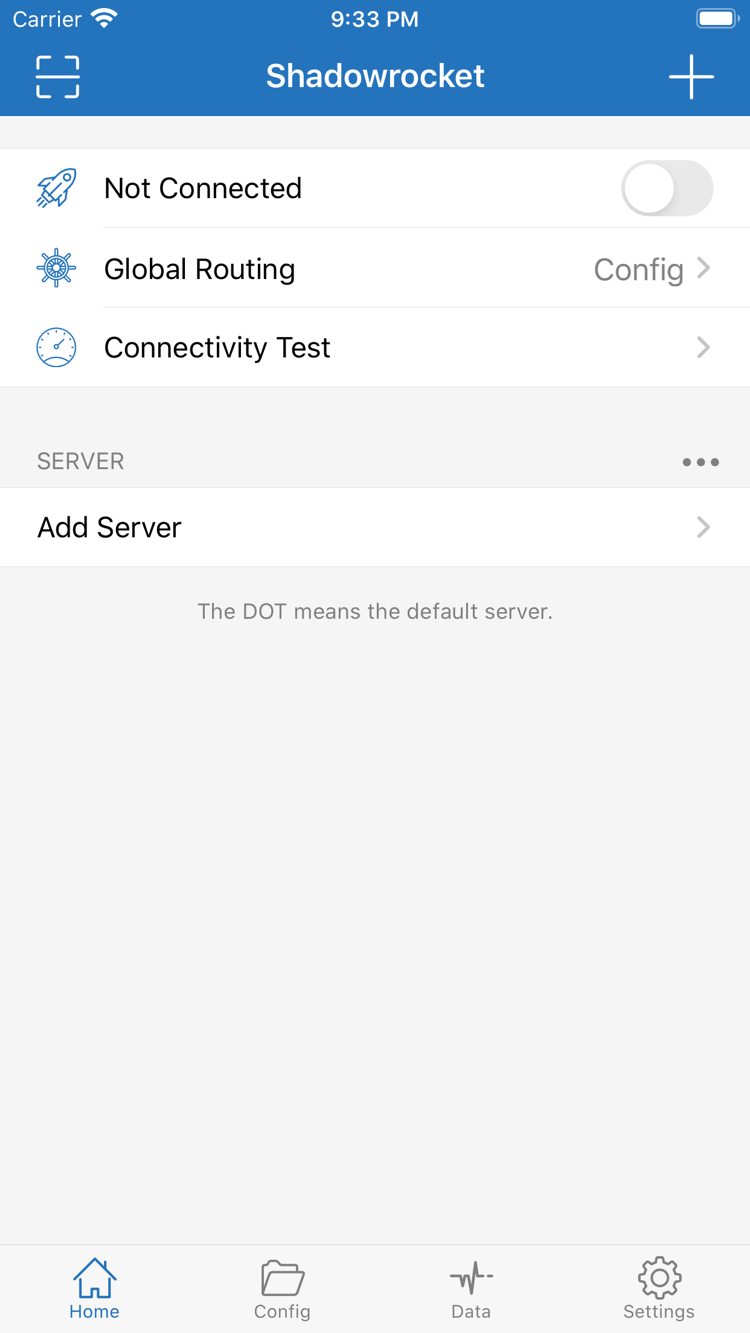
Open Shadowrocket and go to Home. First, check the SERVER section near the bottom. If the list is empty, turning on the connection switch won’t provide the missing server details. Find Add Server, or use the add button on the page to open it. Choose the option that matches the details you have; there’s no need to import the same information more than once.
Have a Subscription Link? Choose Subscribe
In Add Server, choose Subscribe under Type. Find the subscription URL field and paste the complete link from your provider. Don’t copy just the domain or omit the path and parameters. Add a recognizable name and save. Wait for the subscription to load, then return to Home and check the list. If the servers appear in a subscription group, expand it and confirm that it contains individual servers, not just a group name.
A subscription link may contain account-identifying parameters, so protect it like a password. Check it only on your own device, and don’t include the full URL in public screenshots or chat logs. Saving the URL and successfully loading its contents are separate steps. If the group appears but contains no servers, check whether the update succeeded before trying to connect to an empty list. Server names and counts may also change when you refresh a subscription, depending on the service you already have.
Have Details for One Server? Enter Each Field
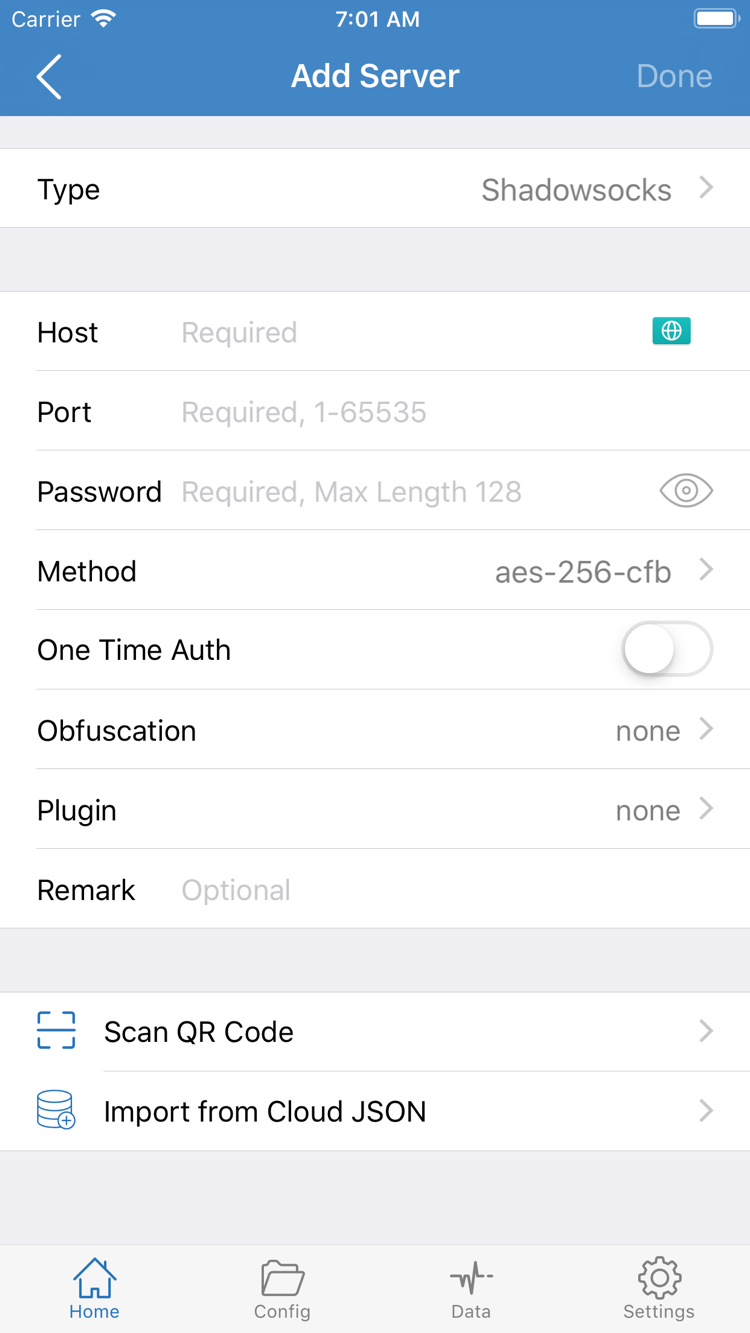
To add a server manually, choose the correct Type first, then fill in the fields shown for that type. Host, Port, Password, and Method in the screenshot belong to a specific form; they are not universal fields for every protocol. Enter the server address in Host and the port in Port. Match authentication, transport, TLS, and other settings to your own details. Don’t guess the protocol from its name or enter one protocol’s password in another protocol’s identity field.
If your provider supplies a compatible QR code, choose Scan QR Code and allow camera access when prompted. Import from Cloud JSON is for the corresponding file format, not a general way to import subscription URLs. After importing, open the entry and check its Type, address, and port. For an overview of the fields, see the quick reference. For this step, make sure all details are present and match the original information.
Step complete: Return to Home and confirm that a recognizable server appears under SERVER. Open it and check that the key fields match your existing details. This confirms that the information was added; it doesn’t confirm that the server is reachable. Next, choose Global Routing, then test the connection and web access.
STEP 02 / Global Routing · Config
Choose a Global Routing Mode
After adding the server, return to Home and open Global Routing. This setting determines how connections are handled; it doesn’t fetch server details or fix an incorrect port or authentication information. The three modes are Config, Proxy, and Direct. Understand the differences before choosing one, and don’t assume a mode is working just because of its name.
- Config: Handles connections according to the currently selected configuration file. Rules can send different destinations to PROXY, DIRECT, or REJECT. The result depends on the rules and their order.
- Proxy: Routes regular connections through the current proxy policy. This can help reduce differences caused by rules while checking server access, but it does not guarantee how every app or connection will behave.
- Direct: Handles connections in Direct mode. Use it for comparison with your usual network, but a website opening in Direct mode does not prove that the proxy server is working.
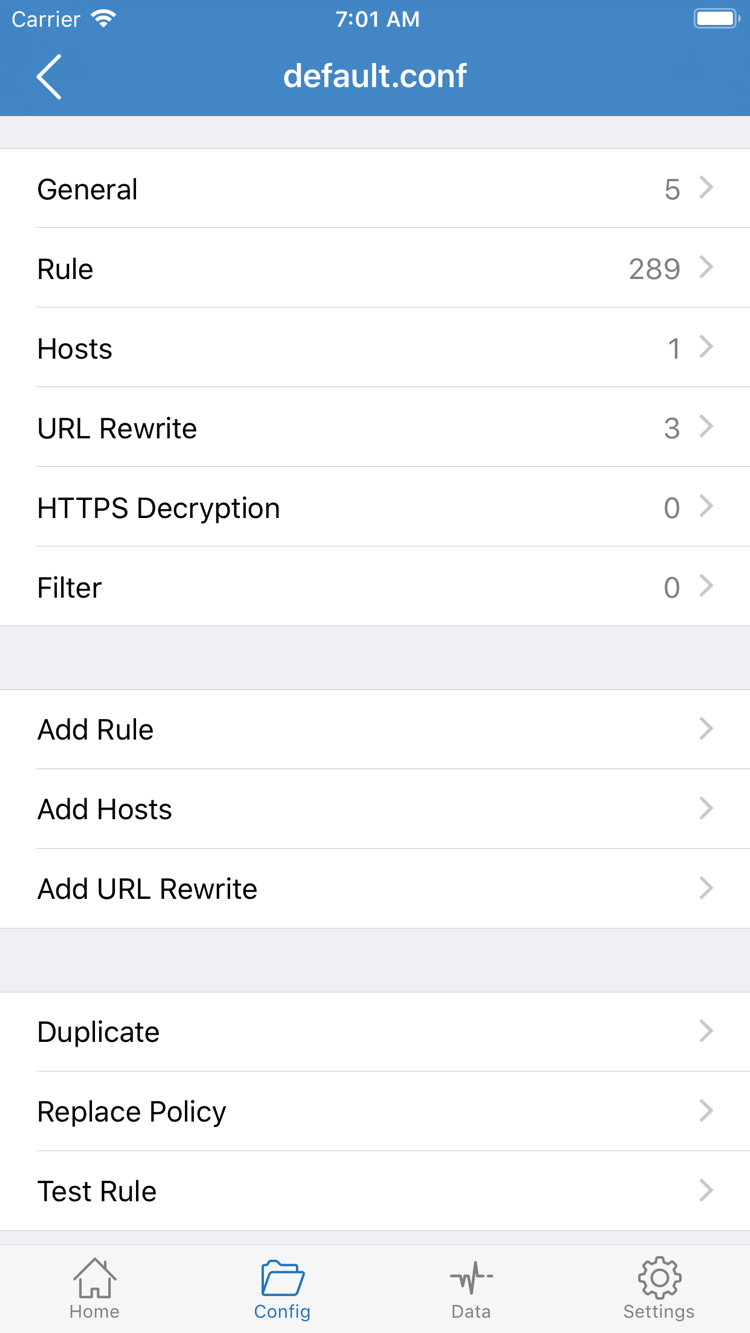
To use rules, select Config, then open Config from the bottom navigation. Check that the selected file is the one you intend to use. Importing or editing a file does not automatically make it the active configuration. Open the file to see sections such as General, Rule, Hosts, URL Rewrite, and HTTPS Decryption. When getting started, focus on Rule; you don’t need to change every section just to connect to a server.
Rules in Rule are usually matched in order. Once a destination matches an earlier rule, a later fallback rule won’t decide its route. For example, the teaching snippet below sends example.com and its subdomains to PROXY, private network ranges to DIRECT, and other connections to the policy specified by FINAL. This is a syntax example, not a complete configuration to use as-is, and it does not include connection details.
DOMAIN-SUFFIX,example.com,PROXY
IP-CIDR,192.168.0.0/16,DIRECT
FINAL,PROXY
When you’re getting started, don’t rush to tap Add Rule. Keep a copy of the original configuration, confirm that the active file suits your server, and then decide whether to change a specific rule. If your configuration uses additional policy names, check that they exist and where they point. See the quick reference for rule keywords. For complex matching order and troubleshooting, see the troubleshooting manual.
Step complete: Global Routing on Home shows the mode you expect. If you chose Config, you can identify the file currently in use. Next, return to Home, select a server, and connect. Don’t change rules, DNS, and transport settings repeatedly before connecting.
STEP 03 / Home · SERVER
Select a Server and Turn On the Connection
Return to Home and select the specific server you want under SERVER. Make sure the selection indicator is on the intended entry; opening its edit screen isn’t the same as selecting it. If the list contains several entries, test one whose details you’ve checked. Avoid switching between servers before testing, or it will be harder to tell what changed the result.
After selecting a server, turn on the connection switch at the top of Home. The first time you connect, the system may ask to add a VPN configuration. This permission lets Shadowrocket handle connections through the system network extension; it does not confirm that the server is working. Check the app name in the prompt, tap Allow, and authenticate with Face ID, Touch ID, or your device passcode as required. Authentication takes place in the system interface. Don’t enter your device passcode in Add Server.
If you previously denied the permission request, return to the app and try the switch again. Watch for the system confirmation prompt. If system restrictions prevent adding a VPN configuration, check the relevant restrictions in your device settings. On a managed device, follow your organization’s policies. Don’t repeatedly delete profiles you don’t recognize or remove management settings you don’t understand just to test the connection.
After granting permission, return to Home. Check whether the status at the top still says Not Connected and whether the switch stays on. If it turns off immediately, note any message from the app or system, then continue to the troubleshooting step. If it stays on, keep testing: this only shows that the local connection process started, not that the remote server, DNS, or every routing rule is working.
Keep your network stable while connecting. Switching from Wi-Fi to cellular, entering a weak-signal area, or changing hotspots can affect test results. To compare two networks, finish testing on one before switching to the other and repeating the test. Don’t change networks and protocol settings in the same attempt.
If the connection turns back on after you switch it off, check whether On Demand is enabled. It controls automatic connections based on network conditions; it isn’t a source of servers. When troubleshooting for the first time, note the current settings, then temporarily disable the relevant automatic connection conditions so you can control each test manually. Sending the app to the background doesn’t disconnect it; check the app and system VPN status instead.
Step complete: System permission is granted, the status at the top of Home no longer says Not Connected, and the switch stays on. Keep the current server and Global Routing mode unchanged, then test a real web request. Don’t stop at the switch alone.
STEP 04 / Connectivity Test · Data
Test Access and Routing Rules
Keep the connection on, find Connectivity Test on Home, and run the test. Wait for the result. It provides a clue about connectivity, but what the result means depends on how the test works. A result does not prove that every website or protocol is working. A failed test also needs to be considered in the context of your current network and the test method; it doesn’t necessarily mean the entire subscription is invalid. Note the server, network type, and result so you can compare later.
Next, open a browser and visit a website whose address you’ve confirmed and can normally access. Start with a regular webpage rather than a large download or long video. Check whether the domain resolves and the main page loads, then see whether images and other resources load correctly. If you’re seeing an old page, reload it or open a new page to make a fresh request, rather than mistaking cached content for new network access.
With Config selected, a successful page load may have used DIRECT rather than PROXY. To check routing, choose one destination you expect to use PROXY and another you expect to use DIRECT, then test each one. Don’t guess how rules work using unfamiliar domains, or assume that a page opening means it went through the selected server. Check the configuration and connection records to see whether it used a proxy.
Return to Shadowrocket and check the available connection or traffic records in Data. The record location can vary by interface layout. Look for the request you just made and check the destination domain, policy used, and any rule-matching details shown. If the record says DIRECT, check in Config why that destination matched a direct rule. If it says REJECT, check for a blocking rule instead of repeatedly changing servers.
If the expected domain doesn’t appear in the records, make sure you’re looking at the latest request and that the connection is on. Some apps reuse existing connections, so make a new request after changing modes before comparing results. Change one variable at a time. For example, switch temporarily from Config to Proxy to test the same destination, then restore the original mode and check the same destination again. This helps show whether the difference came from the rules.
Step complete: You can reload the test page and match the request to the expected mode or policy. If some pages still fail, keep one successful and one failed example, then troubleshoot by symptom. There’s no need to re-enter all your details from scratch.
STEP 05 / Settings · Diagnostics
Troubleshooting Order for Common Issues
First identify where the failure occurs. A subscription that won’t load, a failed server test, a switch that won’t stay on, and a webpage that won’t load are different issues. Keep your current configuration and note the selected server and Global Routing mode, then narrow down the cause in the order below. Change one setting at a time and repeat the same request. If it doesn’t help, restore the original value rather than accumulating changes that are hard to explain.
Subscription Saved, but No Servers Appear
Open the entry for Subscribe and check that the link is complete, has no extra spaces or line breaks, and didn’t return an error during the update. Make sure the device time is correct, your current network can load the subscription, and your own subscription is still active. A subscription URL retrieves a server list; it should not be entered in Host for a regular server. If the error concerns the provider’s response or your account status, check with your provider. This site can’t verify those for you.
Switch Is On, but the Test or Website Fails
First confirm that the right server is selected, then check Type, Host, Port, and authentication fields. If a latency test succeeds but a webpage doesn’t load, also check transport and TLS settings; some test results can’t verify that all these fields are correct. Then check Global Routing. Direct mode can’t confirm that the proxy is working, and with Config you need to check whether the request matched the expected rule. Briefly try Proxy mode to compare the same destination, then restore the original setting.
Some Domains Fail, or a Resource Won’t Load
Check the connection records for domain resolution failures or requests sent to REJECT. DNS resolves domain names to addresses; a server test result alone can’t confirm that DNS is working. Don’t replace all DNS settings at once or copy a complete configuration you don’t understand. Retest the same failed domain, save the current settings, then see the DNS troubleshooting section for the next steps.
Connection Status Keeps Changing, or You Need Diagnostics
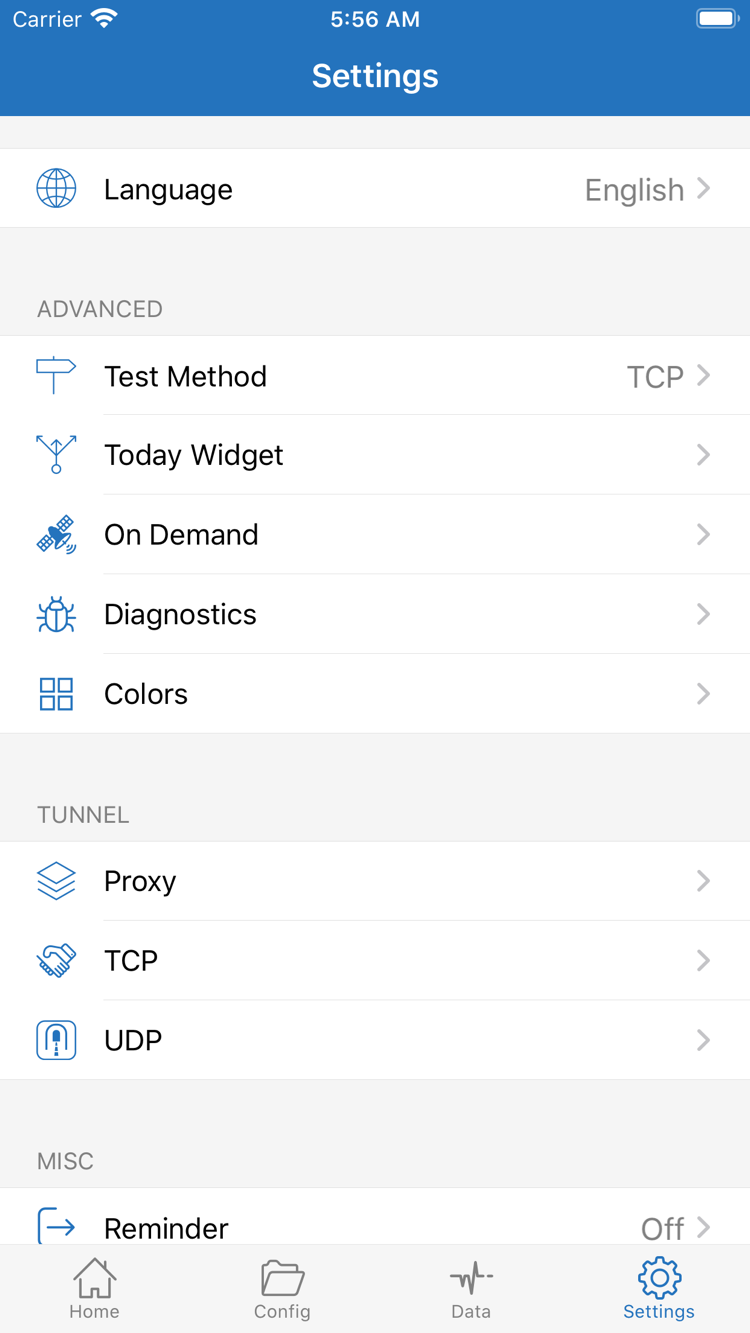
Open Settings and check whether Test Method suits your current test. If the connection starts automatically, check On Demand. To investigate further, review the information in Diagnostics, focusing first on when the error occurred, its destination, and its type. You don’t need to change every Proxy, TCP, and UDP option. Language and Today Widget in Settings won’t fix server authentication errors; troubleshoot the part of the connection where the problem occurs.
If you need to report an issue to your provider, note the device’s current network, the selected protocol, what happened, and the checks you’ve already tried. Before sharing, remove subscription links, passwords, identifiers, private fields from the full configuration, and other personal information. Don’t post the entire configuration publicly. Use the same troubleshooting order on iPad; changes in screen orientation or layout don’t change the need for server details to match.
Next: If access is stable, keep the working configuration and note the selected server and mode. If the issue persists, continue with Troubleshooting for your specific symptom. If you’re unsure about Subscribe, DNS, or FINAL, check the quick reference first, then return to this guide and test again.